Global scope constants and functions.
A list of global scope enumerated constants and built-in functions. This is all that resides in the globals, constants regarding error codes, keycodes, property hints, etc.
Singletons are also documented here, since they can be accessed from anywhere.
For the entries that can only be accessed from scripts written in GDScript, see @GDScript.
The EditorInterface singleton.
Note: Only available in editor builds.
The GDScriptLanguageProtocol singleton.
Note: Only available in editor builds.
The JavaClassWrapper singleton.
Note: Only implemented on Android.
The JavaScriptBridge singleton.
Note: Only implemented on the Web platform.
Returns the absolute value of a Variant parameter x (i.e. non-negative value). Supported types: int, float, Vector2, Vector2i, Vector3, Vector3i, Vector4, Vector4i.
var a = abs(-1)
# a is 1

var b = abs(-1.2)
# b is 1.2

var c = abs(Vector2(-3.5, -4))
# c is (3.5, 4)

var d = abs(Vector2i(-5, -6))
# d is (5, 6)

var e = abs(Vector3(-7, 8.5, -3.8))
# e is (7, 8.5, 3.8)

var f = abs(Vector3i(-7, -8, -9))
# f is (7, 8, 9)
Note: For better type safety, use absf(), absi(), Vector2.abs(), Vector2i.abs(), Vector3.abs(), Vector3i.abs(), Vector4.abs(), or Vector4i.abs().
Returns the hyperbolic arc (also called inverse) cosine of x, returning a value in radians. Use it to get the angle from an angle's cosine in hyperbolic space if x is larger or equal to 1. For values of x lower than 1, it will return 0, in order to prevent acosh() from returning NAN.
var a = acosh(2) # Returns 1.31695789692482
cosh(a) # Returns 2

var b = acosh(-1) # Returns 0Returns the difference between the two angles (in radians), in the range of [-PI, +PI]. When from and to are opposite, returns -PI if from is smaller than to, or PI otherwise.
Returns the hyperbolic arc (also called inverse) sine of x, returning a value in radians. Use it to get the angle from an angle's sine in hyperbolic space.
var a = asinh(0.9) # Returns 0.8088669356527824
sinh(a) # Returns 0.9Returns the arc tangent of x in radians. Use it to get the angle from an angle's tangent in trigonometry.
The method cannot know in which quadrant the angle should fall. See atan2() if you have both y and [code skip-lint]x[/code].
var a = atan(0.5) # a is 0.463648If x is between -PI / 2 and PI / 2 (inclusive), atan(tan(x)) is equal to x.
Returns the arc tangent of y/x in radians. Use to get the angle of tangent y/x. To compute the value, the method takes into account the sign of both arguments in order to determine the quadrant.
Important note: The Y coordinate comes first, by convention.
var a = atan2(0, -1) # a is 3.141593Returns the hyperbolic arc (also called inverse) tangent of x, returning a value in radians. Use it to get the angle from an angle's tangent in hyperbolic space if x is between -1 and 1 (non-inclusive).
In mathematics, the inverse hyperbolic tangent is only defined for -1 < x < 1 in the real set, so values equal or lower to -1 for x return negative INF and values equal or higher than 1 return positive INF in order to prevent atanh() from returning NAN.
var a = atanh(0.9) # Returns 1.47221948958322
tanh(a) # Returns 0.9

var b = atanh(-2) # Returns -inf
tanh(b) # Returns -1Returns the derivative at the given t on a one-dimensional Bézier curve defined by the given control_1, control_2, and end points.
Returns the point at the given t on a one-dimensional Bézier curve defined by the given control_1, control_2, and end points.
Decodes a byte array back to a Variant value, without decoding objects.
Note: If you need object deserialization, see bytes_to_var_with_objects().
Decodes a byte array back to a Variant value. Decoding objects is allowed.
Warning: Deserialized object can contain code which gets executed. Do not use this option if the serialized object comes from untrusted sources to avoid potential security threats (remote code execution).
Rounds x upward (towards positive infinity), returning the smallest whole number that is not less than x. Supported types: int, float, Vector2, Vector2i, Vector3, Vector3i, Vector4, Vector4i.
var i = ceil(1.45) # i is 2.0
i = ceil(1.001)    # i is 2.0
See also floor(), round(), and snapped().
Note: For better type safety, use ceilf(), ceili(), Vector2.ceil(), Vector3.ceil(), or Vector4.ceil().
Clamps the value, returning a Variant not less than min and not more than max. Any values that can be compared with the less than and greater than operators will work.
var a = clamp(-10, -1, 5)
# a is -1

var b = clamp(8.1, 0.9, 5.5)
# b is 5.5
Note: For better type safety, use clampf(), clampi(), Vector2.clamp(), Vector2i.clamp(), Vector3.clamp(), Vector3i.clamp(), Vector4.clamp(), Vector4i.clamp(), or Color.clamp() (not currently supported by this method).
Note: When using this on vectors it will not perform component-wise clamping, and will pick min if value < min or max if value > max. To perform component-wise clamping use the methods listed above.
Clamps the value, returning a float not less than min and not more than max.
var speed = 42.1
var a = clampf(speed, 1.0, 20.5) # a is 20.5

speed = -10.0
var b = clampf(speed, -1.0, 1.0) # b is -1.0Clamps the value, returning an int not less than min and not more than max.
var speed = 42
var a = clampi(speed, 1, 20) # a is 20

speed = -10
var b = clampi(speed, -1, 1) # b is -1Returns the cosine of angle angle_rad in radians.
cos(PI * 2)         # Returns 1.0
cos(PI)             # Returns -1.0
cos(deg_to_rad(90)) # Returns 0.0Cubic interpolates between two rotation values with shortest path by the factor defined in weight with pre and post values. See also lerp_angle().
Cubic interpolates between two rotation values with shortest path by the factor defined in weight with pre and post values. See also lerp_angle().
It can perform smoother interpolation than cubic_interpolate() by the time values.
Cubic interpolates between two values by the factor defined in weight with pre and post values.
It can perform smoother interpolation than cubic_interpolate() by the time values.
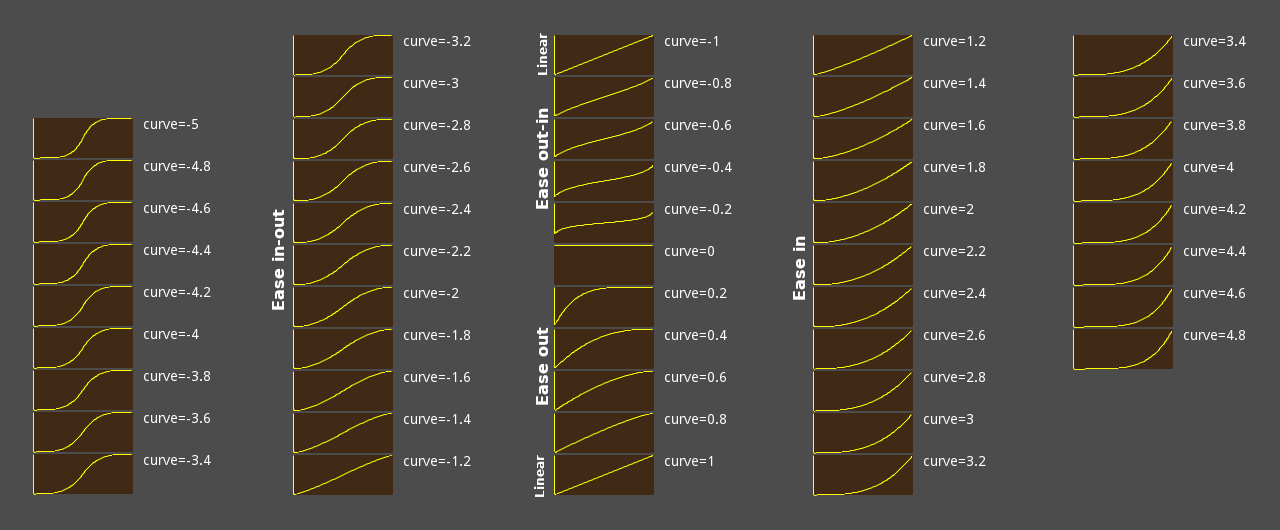
Returns an "eased" value of x based on an easing function defined with curve. This easing function is based on an exponent. The curve can be any floating-point number, with specific values leading to the following behaviors:
- Lower than -1.0 (exclusive): Ease in-out
- -1.0: Linear
- Between -1.0 and 0.0 (exclusive): Ease out-in
- 0.0: Constant
- Between 0.0 to 1.0 (exclusive): Ease out
- 1.0: Linear
- Greater than 1.0 (exclusive): Ease in
ease() curve values cheatsheet
See also smoothstep(). If you need to perform more advanced transitions, use Tween.interpolate_value().
Returns a human-readable name for the given Error code.
print(OK)                              # Prints 0
print(error_string(OK))                # Prints "OK"
print(error_string(ERR_BUSY))          # Prints "Busy"
print(error_string(ERR_OUT_OF_MEMORY)) # Prints "Out of memory"The natural exponential function. It raises the mathematical constant e to the power of x and returns it.
e has an approximate value of 2.71828, and can be obtained with exp(1).
For exponents to other bases use the method pow().
var a = exp(2) # Approximately 7.39Rounds x downward (towards negative infinity), returning the largest whole number that is not more than x. Supported types: int, float, Vector2, Vector2i, Vector3, Vector3i, Vector4, Vector4i.
var a = floor(2.99) # a is 2.0
a = floor(-2.99)    # a is -3.0
See also ceil(), round(), and snapped().
Note: For better type safety, use floorf(), floori(), Vector2.floor(), Vector3.floor(), or Vector4.floor().
Returns the floating-point remainder of x divided by y, keeping the sign of x.
var remainder = fmod(7, 5.5) # remainder is 1.5For the integer remainder operation, use the % operator.
Returns the floating-point modulus of x divided by y, wrapping equally in positive and negative.
print(" (x)  (fmod(x, 1.5))   (fposmod(x, 1.5))")
for i in 7:
	var x = i * 0.5 - 1.5
	print("%4.1f           %4.1f  | %4.1f" % [x, fmod(x, 1.5), fposmod(x, 1.5)])
Prints:
 (x)  (fmod(x, 1.5))   (fposmod(x, 1.5))
-1.5           -0.0  |  0.0
-1.0           -1.0  |  0.5
-0.5           -0.5  |  1.0
 0.0            0.0  |  0.0
 0.5            0.5  |  0.5
 1.0            1.0  |  1.0
1.5 0.0 | 0.0Returns the Object that corresponds to instance_id. All Objects have a unique instance ID. See also Object.get_instance_id().
var drink = "water"

func _ready():
	var id = get_instance_id()
	var instance = instance_from_id(id)
print(instance.drink) # Prints "water"Returns an interpolation or extrapolation factor considering the range specified in from and to, and the interpolated value specified in weight. The returned value will be between 0.0 and 1.0 if weight is between from and to (inclusive). If weight is located outside this range, then an extrapolation factor will be returned (return value lower than 0.0 or greater than 1.0). Use clamp() on the result of inverse_lerp() if this is not desired.
# The interpolation ratio in the `lerp()` call below is 0.75.
var middle = lerp(20, 30, 0.75)
# middle is now 27.5.

# Now, we pretend to have forgotten the original ratio and want to get it back.
var ratio = inverse_lerp(20, 30, 27.5)
# ratio is now 0.75.
See also lerp(), which performs the reverse of this operation, and remap() to map a continuous series of values to another.
Returns true if a and b are approximately equal to each other.
Here, "approximately equal" means that a and b are within a small internal epsilon of each other, which scales with the magnitude of the numbers.
Infinity values of the same sign are considered equal.
Returns true if x is either positive infinity or negative infinity. See also is_finite() and is_nan().
Returns true if the Object that corresponds to id is a valid object (e.g. has not been deleted from memory). All Objects have a unique instance ID.
Returns true if x is a NaN ("Not a Number" or invalid) value. This method is needed as NAN is not equal to itself, which means x == NAN can't be used to check whether a value is a NaN.
Returns true, for value types, if a and b share the same value. Returns true, for reference types, if the references of a and b are the same.
# Vector2 is a value type
var vec2_a = Vector2(0, 0)
var vec2_b = Vector2(0, 0)
var vec2_c = Vector2(1, 1)
is_same(vec2_a, vec2_a)  # true
is_same(vec2_a, vec2_b)  # true
is_same(vec2_a, vec2_c)  # false

# Array is a reference type
var arr_a = []
var arr_b = []
is_same(arr_a, arr_a)  # true
is_same(arr_a, arr_b)  # false
These are Variant value types: null, bool, int, float, String, StringName, Vector2, Vector2i, Vector3, Vector3i, Vector4, Vector4i, Rect2, Rect2i, Transform2D, Transform3D, Plane, Quaternion, AABB, Basis, Projection, Color, NodePath, RID, Callable and Signal.
These are Variant reference types: Object, Dictionary, Array, PackedByteArray, PackedInt32Array, PackedInt64Array, PackedFloat32Array, PackedFloat64Array, PackedStringArray, PackedVector2Array, PackedVector3Array, PackedVector4Array, and PackedColorArray.
Returns true if x is zero or almost zero. The comparison is done using a tolerance calculation with a small internal epsilon.
This function is faster than using is_equal_approx() with one value as zero.
Linearly interpolates between two values by the factor defined in weight. To perform interpolation, weight should be between 0.0 and 1.0 (inclusive). However, values outside this range are allowed and can be used to perform extrapolation. If this is not desired, use clampf() to limit weight.
Both from and to must be the same type. Supported types: int, float, Vector2, Vector3, Vector4, Color, Quaternion, Basis, Transform2D, Transform3D.
lerp(0, 4, 0.75) # Returns 3.0See also inverse_lerp() which performs the reverse of this operation. To perform eased interpolation with lerp(), combine it with ease() or smoothstep(). See also remap() to map a continuous series of values to another.
Note: For better type safety, use lerpf(), Vector2.lerp(), Vector3.lerp(), Vector4.lerp(), Color.lerp(), Quaternion.slerp(), Basis.slerp(), Transform2D.interpolate_with(), or Transform3D.interpolate_with().
Linearly interpolates between two angles (in radians) by a weight value between 0.0 and 1.0.
Similar to lerp(), but interpolates correctly when the angles wrap around TAU. To perform eased interpolation with lerp_angle(), combine it with ease() or smoothstep().
extends Sprite
var elapsed = 0.0
func _process(delta):
	var min_angle = deg_to_rad(0.0)
	var max_angle = deg_to_rad(90.0)
	rotation = lerp_angle(min_angle, max_angle, elapsed)
	elapsed += delta
Note: This function lerps through the shortest path between from and to. However, when these two angles are approximately PI + k * TAU apart for any integer k, it's not obvious which way they lerp due to floating-point precision errors. For example, lerp_angle(0, PI, weight) lerps counter-clockwise, while lerp_angle(0, PI + 5 * TAU, weight) lerps clockwise.
Linearly interpolates between two values by the factor defined in weight. To perform interpolation, weight should be between 0.0 and 1.0 (inclusive). However, values outside this range are allowed and can be used to perform extrapolation. If this is not desired, use clampf() on the result of this function.
lerpf(0, 4, 0.75) # Returns 3.0See also inverse_lerp() which performs the reverse of this operation. To perform eased interpolation with lerp(), combine it with ease() or smoothstep().
Converts from linear energy to decibels (audio). Since volume is not normally linear, this can be used to implement volume sliders that behave as expected.
Example: Change the Master bus's volume through a Slider node, which ranges from 0.0 to 1.0:
AudioServer.set_bus_volume_db(AudioServer.get_bus_index("Master"), linear_to_db($Slider.value))Returns the natural logarithm of x (base e, with e being approximately 2.71828). This is the amount of time needed to reach a certain level of continuous growth.
Note: This is not the same as the "log" function on most calculators, which uses a base 10 logarithm. To use base 10 logarithm, use log(x) / log(10).
log(10) # Returns 2.302585Note: The logarithm of 0 returns -inf, while negative values return -nan.
Returns the maximum of the given numeric values. This function can take any number of arguments.
max(1, 7, 3, -6, 5) # Returns 7Note: When using this on vectors it will not perform component-wise maximum, and will pick the largest value when compared using x < y. To perform component-wise maximum, use Vector2.max(), Vector2i.max(), Vector3.max(), Vector3i.max(), Vector4.max(), and Vector4i.max().
Returns the maximum of two float values.
maxf(3.6, 24)   # Returns 24.0
maxf(-3.99, -4) # Returns -3.99Returns the maximum of two int values.
maxi(1, 2)   # Returns 2
maxi(-3, -4) # Returns -3Returns the minimum of the given numeric values. This function can take any number of arguments.
min(1, 7, 3, -6, 5) # Returns -6Note: When using this on vectors it will not perform component-wise minimum, and will pick the smallest value when compared using x < y. To perform component-wise minimum, use Vector2.min(), Vector2i.min(), Vector3.min(), Vector3i.min(), Vector4.min(), and Vector4i.min().
Returns the minimum of two float values.
minf(3.6, 24)   # Returns 3.6
minf(-3.99, -4) # Returns -4.0Returns the minimum of two int values.
mini(1, 2)   # Returns 1
mini(-3, -4) # Returns -4Moves from toward to by the delta amount. Will not go past to.
Use a negative delta value to move away.
move_toward(5, 10, 4)    # Returns 9
move_toward(10, 5, 4)    # Returns 6
move_toward(5, 10, 9)    # Returns 10
move_toward(10, 5, -1.5) # Returns 11.5Returns the smallest integer power of 2 that is greater than or equal to value.
nearest_po2(3) # Returns 4
nearest_po2(4) # Returns 4
nearest_po2(5) # Returns 8

nearest_po2(0)  # Returns 0 (this may not be expected)
nearest_po2(-1) # Returns 0 (this may not be expected)
Warning: Due to its implementation, this method returns 0 rather than 1 for values less than or equal to 0, with an exception for value being the smallest negative 64-bit integer (-9223372036854775808) in which case the value is returned unchanged.
Wraps value between 0 and the length. If the limit is reached, the next value the function returns is decreased to the 0 side or increased to the length side (like a triangle wave). If length is less than zero, it becomes positive.
pingpong(-3.0, 3.0) # Returns 3.0
pingpong(-2.0, 3.0) # Returns 2.0
pingpong(-1.0, 3.0) # Returns 1.0
pingpong(0.0, 3.0)  # Returns 0.0
pingpong(1.0, 3.0)  # Returns 1.0
pingpong(2.0, 3.0)  # Returns 2.0
pingpong(3.0, 3.0)  # Returns 3.0
pingpong(4.0, 3.0)  # Returns 2.0
pingpong(5.0, 3.0)  # Returns 1.0
pingpong(6.0, 3.0) # Returns 0.0Returns the integer modulus of x divided by y that wraps equally in positive and negative.
print("#(i)  (i % 3)   (posmod(i, 3))")
for i in range(-3, 4):
	print("%2d       %2d  | %2d" % [i, i % 3, posmod(i, 3)])
Prints:
(i)  (i % 3)   (posmod(i, 3))
-3        0  |  0
-2       -2  |  1
-1       -1  |  2
 0        0  |  0
 1        1  |  1
 2        2  |  2
3 0 | 0Returns the result of base raised to the power of exp.
In GDScript, this is the equivalent of the ** operator.
pow(2, 5)   # Returns 32.0
pow(4, 1.5) # Returns 8.0Converts one or more arguments of any type to string in the best way possible and prints them to the console.
var a = [1, 2, 3]
print("a", "b", a) # Prints "ab[1, 2, 3]"
Note: Consider using push_error() and push_warning() to print error and warning messages instead of print() or print_rich(). This distinguishes them from print messages used for debugging purposes, while also displaying a stack trace when an error or warning is printed. See also Engine.print_to_stdout and ProjectSettings.application/run/disable_stdout.
Converts one or more arguments of any type to string in the best way possible and prints them to the console.
The following BBCode tags are supported: b, i, u, s, indent, code, url, center, right, color, bgcolor, fgcolor.
URL tags only support URLs wrapped by a URL tag, not URLs with a different title.
When printing to standard output, the supported subset of BBCode is converted to ANSI escape codes for the terminal emulator to display. Support for ANSI escape codes varies across terminal emulators, especially for italic and strikethrough. In standard output, code is represented with faint text but without any font change. Unsupported tags are left as-is in standard output.
print_rich("[color=green][b]Hello world![/b][/color]") # Prints "Hello world!", in green with a bold font.[csharp skip-lint]
GD.PrintRich("[color=green]Hello world![/color]"); // Prints "Hello world!", in green with a bold font.
[/csharp]
Note: Consider using push_error() and push_warning() to print error and warning messages instead of print() or print_rich(). This distinguishes them from print messages used for debugging purposes, while also displaying a stack trace when an error or warning is printed.
Note: Output displayed in the editor supports clickable [code skip-lint]text[/code] tags. The [code skip-lint][url][/code] tag's address value is handled by OS.shell_open() when clicked.
If verbose mode is enabled (OS.is_stdout_verbose() returning true), converts one or more arguments of any type to string in the best way possible and prints them to the console.
Prints one or more arguments to strings in the best way possible to standard error line.
printerr("prints to stderr")Prints one or more arguments to strings in the best way possible to the OS terminal. Unlike print(), no newline is automatically added at the end.
Note: The OS terminal is not the same as the editor's Output dock. The output sent to the OS terminal can be seen when running Godot from a terminal. On Windows, this requires using the console.exe executable.
# Prints "ABC" to terminal.
printraw("A")
printraw("B")
printraw("C")Prints one or more arguments to the console with a space between each argument.
prints("A", "B", "C") # Prints "A B C"Prints one or more arguments to the console with a tab between each argument.
printt("A", "B", "C") # Prints "A B C"Pushes an error message to Godot's built-in debugger and to the OS terminal.
push_error("test error") # Prints "test error" to debugger and terminal as an error.Note: This function does not pause project execution. To print an error message and pause project execution in debug builds, use assert(false, "test error") instead.
Pushes a warning message to Godot's built-in debugger and to the OS terminal.
push_warning("test warning") # Prints "test warning" to debugger and terminal as a warning.Converts an angle expressed in radians to degrees.
rad_to_deg(0.523599) # Returns 30
rad_to_deg(PI)       # Returns 180
rad_to_deg(PI * 2) # Returns 360Given a seed, returns a PackedInt64Array of size 2, where its first element is the randomized int value, and the second element is the same as seed. Passing the same seed consistently returns the same array.
Note: "Seed" here refers to the internal state of the pseudo random number generator, currently implemented as a 64 bit integer.
var a = rand_from_seed(4)

print(a[0]) # Prints 2879024997
print(a[1]) # Prints 4Returns a random floating-point value between 0.0 and 1.0 (inclusive).
randf() # Returns e.g. 0.375671Returns a random floating-point value between from and to (inclusive).
randf_range(0, 20.5) # Returns e.g. 7.45315
randf_range(-10, 10) # Returns e.g. -3.844535Returns a normally-distributed, pseudo-random floating-point value from the specified mean and a standard deviation. This is also known as a Gaussian distribution.
Note: This method uses the Box-Muller transform algorithm.
Returns a random unsigned 32-bit integer. Use remainder to obtain a random value in the interval [0, N - 1] (where N is smaller than 2^32).
randi()           # Returns random integer between 0 and 2^32 - 1
randi() % 20      # Returns random integer between 0 and 19
randi() % 100     # Returns random integer between 0 and 99
randi() % 100 + 1 # Returns random integer between 1 and 100Returns a random signed 32-bit integer between from and to (inclusive). If to is lesser than from, they are swapped.
randi_range(0, 1)      # Returns either 0 or 1
randi_range(-10, 1000) # Returns random integer between -10 and 1000Randomizes the seed (or the internal state) of the random number generator. The current implementation uses a number based on the device's time.
Note: This function is called automatically when the project is run. If you need to fix the seed to have consistent, reproducible results, use seed() to initialize the random number generator.
Maps a value from range [istart, istop] to [ostart, ostop]. See also lerp() and inverse_lerp(). If value is outside [istart, istop], then the resulting value will also be outside [ostart, ostop]. If this is not desired, use clamp() on the result of this function.
remap(75, 0, 100, -1, 1) # Returns 0.5For complex use cases where multiple ranges are needed, consider using Curve or Gradient instead.
Note: If istart == istop, the return value is undefined (most likely NaN, INF, or -INF).
Allocates a unique ID which can be used by the implementation to construct an RID. This is used mainly from native extensions to implement servers.
Rotates from toward to by the delta amount. Will not go past to.
Similar to move_toward(), but interpolates correctly when the angles wrap around TAU.
If delta is negative, this function will rotate away from to, toward the opposite angle, and will not go past the opposite angle.
Rounds x to the nearest whole number, with halfway cases rounded away from 0. Supported types: int, float, Vector2, Vector2i, Vector3, Vector3i, Vector4, Vector4i.
round(2.4) # Returns 2
round(2.5) # Returns 3
round(2.6) # Returns 3
See also floor(), ceil(), and snapped().
Note: For better type safety, use roundf(), roundi(), Vector2.round(), Vector3.round(), or Vector4.round().
Sets the seed for the random number generator to base. Setting the seed manually can ensure consistent, repeatable results for most random functions.
var my_seed = "Godot Rocks".hash()
seed(my_seed)
var a = randf() + randi()
seed(my_seed)
var b = randf() + randi()
# a and b are now identicalReturns the same type of Variant as x, with -1 for negative values, 1 for positive values, and 0 for zeros. For nan values it returns 0.
Supported types: int, float, Vector2, Vector2i, Vector3, Vector3i, Vector4, Vector4i.
sign(-6.0) # Returns -1
sign(0.0)  # Returns 0
sign(6.0)  # Returns 1
sign(NAN)  # Returns 0

sign(Vector3(-6.0, 0.0, 6.0)) # Returns (-1, 0, 1)
Note: For better type safety, use signf(), signi(), Vector2.sign(), Vector2i.sign(), Vector3.sign(), Vector3i.sign(), Vector4.sign(), or Vector4i.sign().
Returns -1.0 if x is negative, 1.0 if x is positive, and 0.0 if x is zero. For nan values of x it returns 0.0.
signf(-6.5) # Returns -1.0
signf(0.0)  # Returns 0.0
signf(6.5)  # Returns 1.0
signf(NAN) # Returns 0.0Returns -1 if x is negative, 1 if x is positive, and 0 if x is zero.
signi(-6) # Returns -1
signi(0)  # Returns 0
signi(6) # Returns 1Returns the sine of angle angle_rad in radians.
sin(0.523599)       # Returns 0.5
sin(deg_to_rad(90)) # Returns 1.0Returns a smooth cubic Hermite interpolation between 0 and 1.
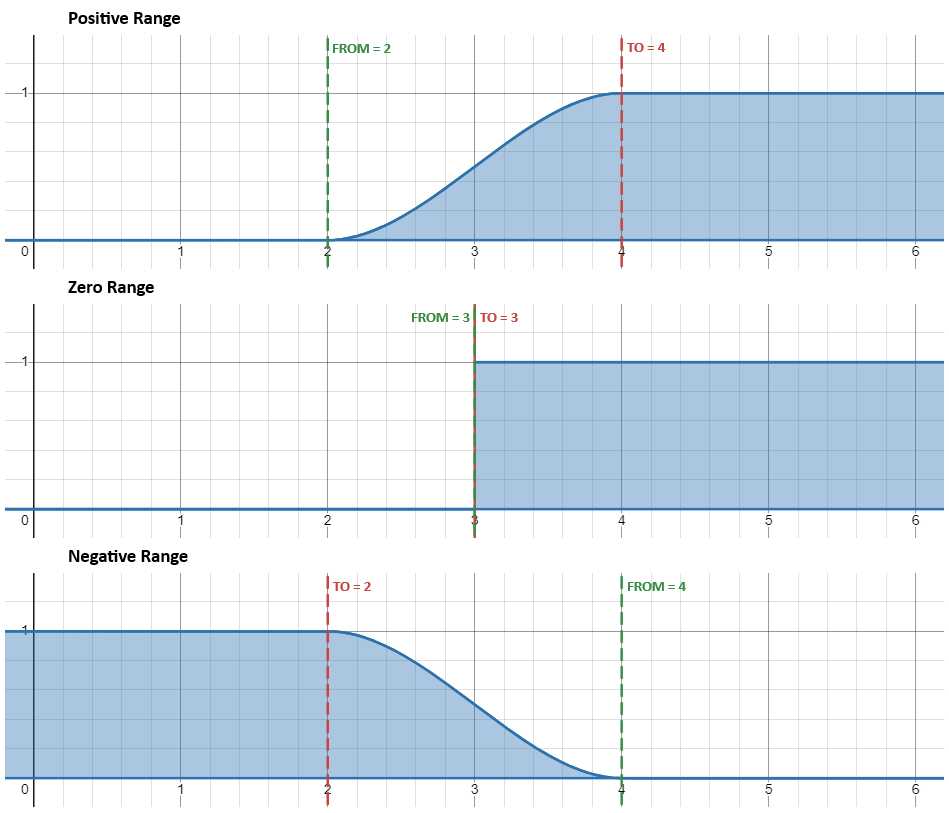
For positive ranges (when from <= to) the return value is 0 when x <= from, and 1 when x >= to. If x lies between from and to, the return value follows an S-shaped curve that smoothly transitions from 0 to 1.
For negative ranges (when from > to) the function is mirrored and returns 1 when x <= to and 0 when x >= from.
This S-shaped curve is the cubic Hermite interpolator, given by f(y) = 3*y^2 - 2*y^3 where y = (x-from) / (to-from).
smoothstep(0, 2, -5.0) # Returns 0.0
smoothstep(0, 2, 0.5) # Returns 0.15625
smoothstep(0, 2, 1.0) # Returns 0.5
smoothstep(0, 2, 2.0) # Returns 1.0
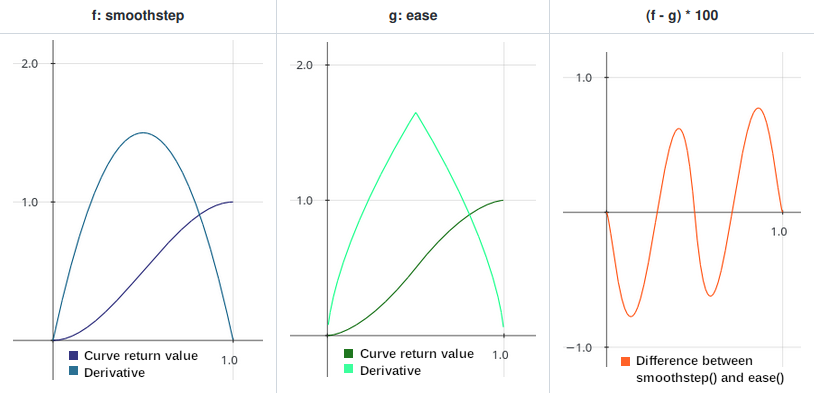
Compared to ease() with a curve value of -1.6521, smoothstep() returns the smoothest possible curve with no sudden changes in the derivative. If you need to perform more advanced transitions, use Tween or AnimationPlayer.
Comparison between smoothstep() and ease(x, -1.6521) return values
Smoothstep() return values with positive, zero, and negative ranges
Returns the multiple of step that is the closest to x. This can also be used to round a floating-point number to an arbitrary number of decimals.
The returned value is the same type of Variant as step. Supported types: int, float, Vector2, Vector2i, Vector3, Vector3i, Vector4, Vector4i.
snapped(100, 32)  # Returns 96
snapped(3.14159, 0.01)  # Returns 3.14

snapped(Vector2(34, 70), Vector2(8, 8))  # Returns (32, 72)
See also ceil(), floor(), and round().
Note: For better type safety, use snappedf(), snappedi(), Vector2.snapped(), Vector2i.snapped(), Vector3.snapped(), Vector3i.snapped(), Vector4.snapped(), or Vector4i.snapped().
Returns the square root of x, where x is a non-negative number.
sqrt(9)     # Returns 3
sqrt(10.24) # Returns 3.2
sqrt(-1)    # Returns NaN
Note: Negative values of x return NaN ("Not a Number"). In C#, if you need negative inputs, use System.Numerics.Complex.
Returns the position of the first non-zero digit, after the decimal point. Note that the maximum return value is 10, which is a design decision in the implementation.
var n = step_decimals(5)       # n is 0
n = step_decimals(1.0005)      # n is 4
n = step_decimals(0.000000005) # n is 9Converts a formatted string that was returned by var_to_str() to the original Variant.
var data = '{ "a": 1, "b": 2 }' # data is a String
var dict = str_to_var(data)     # dict is a Dictionary
print(dict["a"]) # Prints 1Converts the given variant to the given type, using the Variant.Type values. This method is generous with how it handles types, it can automatically convert between array types, convert numeric Strings to int, and converting most things to String.
If the type conversion cannot be done, this method will return the default value for that type, for example converting Rect2 to Vector2 will always return Vector2.ZERO. This method will never show error messages as long as type is a valid Variant type.
The returned value is a Variant, but the data inside and its type will be the same as the requested type.
type_convert("Hi!", TYPE_INT) # Returns 0
type_convert("123", TYPE_INT) # Returns 123
type_convert(123.4, TYPE_INT) # Returns 123
type_convert(5, TYPE_VECTOR2) # Returns (0, 0)
type_convert("Hi!", TYPE_NIL) # Returns nullReturns a human-readable name of the given type, using the Variant.Type values.
print(TYPE_INT) # Prints 2
print(type_string(TYPE_INT)) # Prints "int"
print(type_string(TYPE_STRING)) # Prints "String"
See also typeof().
Returns the internal type of the given variable, using the Variant.Type values.
var json = JSON.new()
json.parse('["a", "b", "c"]')
var result = json.get_data()
if typeof(result) == TYPE_ARRAY:
	print(result[0]) # Prints "a"
else:
	print("Unexpected result!")
See also type_string().
Encodes a Variant value to a byte array, without encoding objects. Deserialization can be done with bytes_to_var().
Note: If you need object serialization, see var_to_bytes_with_objects().
Note: Encoding Callable is not supported and will result in an empty value, regardless of the data.
Encodes a Variant value to a byte array. Encoding objects is allowed (and can potentially include executable code). Deserialization can be done with bytes_to_var_with_objects().
Note: Encoding Callable is not supported and will result in an empty value, regardless of the data.
Converts a Variant variable to a formatted String that can then be parsed using str_to_var().
var a = { "a": 1, "b": 2 }
print(var_to_str(a))
Prints:
{
	"a": 1,
	"b": 2
}
Note: Converting Signal or Callable is not supported and will result in an empty value for these types, regardless of their data.
Returns a WeakRef instance holding a weak reference to obj. Returns an empty WeakRef instance if obj is null. Prints an error and returns null if obj is neither Object-derived nor null.
A weak reference to an object is not enough to keep the object alive: when the only remaining references to a referent are weak references, garbage collection is free to destroy the referent and reuse its memory for something else. However, until the object is actually destroyed the weak reference may return the object even if there are no strong references to it.
Wraps the Variant value between min and max. min is inclusive while max is exclusive. This can be used for creating loop-like behavior or infinite surfaces.
Variant types int and float are supported. If any of the arguments is float, this function returns a float, otherwise it returns an int.
var a = wrap(4, 5, 10)
# a is 9 (int)

var a = wrap(7, 5, 10)
# a is 7 (int)

var a = wrap(10.5, 5, 10)
# a is 5.5 (float)Wraps the float value between min and max. min is inclusive while max is exclusive. This can be used for creating loop-like behavior or infinite surfaces.
# Infinite loop between 5.0 and 9.9
value = wrapf(value + 0.1, 5.0, 10.0)
# Infinite rotation (in radians)
angle = wrapf(angle + 0.1, 0.0, TAU)# Infinite rotation (in radians)
angle = wrapf(angle + 0.1, -PI, PI)Note: If min is 0, this is equivalent to fposmod(), so prefer using that instead. wrapf() is more flexible than using the fposmod() approach by giving the user control over the minimum value.
Wraps the integer value between min and max. min is inclusive while max is exclusive. This can be used for creating loop-like behavior or infinite surfaces.
# Infinite loop between 5 and 9
frame = wrapi(frame + 1, 5, 10)
# result is -2
var result = wrapi(-6, -5, -1)CORNER_TOP_LEFT = 0Top-left corner.
CORNER_TOP_RIGHT = 1Top-right corner.
CORNER_BOTTOM_RIGHT = 2Bottom-right corner.
CORNER_BOTTOM_LEFT = 3Bottom-left corner.
CLOCKWISE = 0Clockwise rotation. Used by some methods (e.g. Image.rotate_90()).
COUNTERCLOCKWISE = 1Counter-clockwise rotation. Used by some methods (e.g. Image.rotate_90()).
HORIZONTAL_ALIGNMENT_LEFT = 0Horizontal left alignment, usually for text-derived classes.
HORIZONTAL_ALIGNMENT_CENTER = 1Horizontal center alignment, usually for text-derived classes.
HORIZONTAL_ALIGNMENT_RIGHT = 2Horizontal right alignment, usually for text-derived classes.
HORIZONTAL_ALIGNMENT_FILL = 3Expand row to fit width, usually for text-derived classes.
VERTICAL_ALIGNMENT_TOP = 0Vertical top alignment, usually for text-derived classes.
VERTICAL_ALIGNMENT_CENTER = 1Vertical center alignment, usually for text-derived classes.
VERTICAL_ALIGNMENT_BOTTOM = 2Vertical bottom alignment, usually for text-derived classes.
VERTICAL_ALIGNMENT_FILL = 3Expand rows to fit height, usually for text-derived classes.
INLINE_ALIGNMENT_TOP_TO = 0Aligns the top of the inline object (e.g. image, table) to the position of the text specified by INLINE_ALIGNMENT_TO_* constant.
INLINE_ALIGNMENT_CENTER_TO = 1Aligns the center of the inline object (e.g. image, table) to the position of the text specified by INLINE_ALIGNMENT_TO_* constant.
INLINE_ALIGNMENT_BASELINE_TO = 3Aligns the baseline (user defined) of the inline object (e.g. image, table) to the position of the text specified by INLINE_ALIGNMENT_TO_* constant.
INLINE_ALIGNMENT_BOTTOM_TO = 2Aligns the bottom of the inline object (e.g. image, table) to the position of the text specified by INLINE_ALIGNMENT_TO_* constant.
INLINE_ALIGNMENT_TO_TOP = 0Aligns the position of the inline object (e.g. image, table) specified by INLINE_ALIGNMENT_*_TO constant to the top of the text.
INLINE_ALIGNMENT_TO_CENTER = 4Aligns the position of the inline object (e.g. image, table) specified by INLINE_ALIGNMENT_*_TO constant to the center of the text.
INLINE_ALIGNMENT_TO_BASELINE = 8Aligns the position of the inline object (e.g. image, table) specified by INLINE_ALIGNMENT_*_TO constant to the baseline of the text.
INLINE_ALIGNMENT_TO_BOTTOM = 12Aligns inline object (e.g. image, table) to the bottom of the text.
INLINE_ALIGNMENT_TOP = 0Aligns top of the inline object (e.g. image, table) to the top of the text. Equivalent to INLINE_ALIGNMENT_TOP_TO | INLINE_ALIGNMENT_TO_TOP.
INLINE_ALIGNMENT_CENTER = 5Aligns center of the inline object (e.g. image, table) to the center of the text. Equivalent to INLINE_ALIGNMENT_CENTER_TO | INLINE_ALIGNMENT_TO_CENTER.
INLINE_ALIGNMENT_BOTTOM = 14Aligns bottom of the inline object (e.g. image, table) to the bottom of the text. Equivalent to INLINE_ALIGNMENT_BOTTOM_TO | INLINE_ALIGNMENT_TO_BOTTOM.
INLINE_ALIGNMENT_IMAGE_MASK = 3A bit mask for INLINE_ALIGNMENT_*_TO alignment constants.
INLINE_ALIGNMENT_TEXT_MASK = 12A bit mask for INLINE_ALIGNMENT_TO_* alignment constants.
EULER_ORDER_XYZ = 0Specifies that Euler angles should be in intrinsic XYZ order. When composing, the rotations happen around the local X, Y, and Z axes, in that order. When decomposing, the order is reversed, first Z, then Y, and X last.
EULER_ORDER_XZY = 1Specifies that Euler angles should be in intrinsic XZY order. When composing, the rotations happen around the local X, Z, and Y axes, in that order. When decomposing, the order is reversed, first Y, then Z, and X last.
EULER_ORDER_YXZ = 2Specifies that Euler angles should be in intrinsic YXZ order. When composing, the rotations happen around the local Y, X, and Z axes, in that order. When decomposing, the order is reversed, first Z, then X, and Y last.
EULER_ORDER_YZX = 3Specifies that Euler angles should be in intrinsic YZX order. When composing, the rotations happen around the local Y, Z, and X axes, in that order. When decomposing, the order is reversed, first X, then Z, and Y last.
EULER_ORDER_ZXY = 4Specifies that Euler angles should be in intrinsic ZXY order. When composing, the rotations happen around the local Z, X, and Y axes, in that order. When decomposing, the order is reversed, first Y, then X, and Z last.
EULER_ORDER_ZYX = 5Specifies that Euler angles should be in intrinsic ZYX order. When composing, the rotations happen around the local Z, Y, and X axes, in that order. When decomposing, the order is reversed, first X, then Y, and Z last.
KEY_NONE = 0Enum value which doesn't correspond to any key. This is used to initialize Key properties with a generic state.
KEY_SPECIAL = 4194304Keycodes with this bit applied are non-printable.
KEY_ESCAPE = 4194305Escape key.
KEY_TAB = 4194306Tab key.
KEY_BACKTAB = 4194307Shift + Tab key.
KEY_BACKSPACE = 4194308Backspace key.
KEY_ENTER = 4194309Return key (on the main keyboard).
KEY_KP_ENTER = 4194310Enter key on the numeric keypad.
KEY_INSERT = 4194311Insert key.
KEY_DELETE = 4194312Delete key.
KEY_PAUSE = 4194313Pause key.
KEY_PRINT = 4194314Print Screen key.
KEY_SYSREQ = 4194315System Request key.
KEY_CLEAR = 4194316Clear key.
KEY_HOME = 4194317Home key.
KEY_END = 4194318End key.
KEY_LEFT = 4194319Left arrow key.
KEY_UP = 4194320Up arrow key.
KEY_RIGHT = 4194321Right arrow key.
KEY_DOWN = 4194322Down arrow key.
KEY_PAGEUP = 4194323Page Up key.
KEY_PAGEDOWN = 4194324Page Down key.
KEY_SHIFT = 4194325Shift key.
KEY_CTRL = 4194326Control key.
KEY_META = 4194327Meta key.
KEY_ALT = 4194328Alt key.
KEY_CAPSLOCK = 4194329Caps Lock key.
KEY_NUMLOCK = 4194330Num Lock key.
KEY_SCROLLLOCK = 4194331Scroll Lock key.
KEY_F1 = 4194332F1 key.
KEY_F2 = 4194333F2 key.
KEY_F3 = 4194334F3 key.
KEY_F4 = 4194335F4 key.
KEY_F5 = 4194336F5 key.
KEY_F6 = 4194337F6 key.
KEY_F7 = 4194338F7 key.
KEY_F8 = 4194339F8 key.
KEY_F9 = 4194340F9 key.
KEY_F10 = 4194341F10 key.
KEY_F11 = 4194342F11 key.
KEY_F12 = 4194343F12 key.
KEY_F13 = 4194344F13 key.
KEY_F14 = 4194345F14 key.
KEY_F15 = 4194346F15 key.
KEY_F16 = 4194347F16 key.
KEY_F17 = 4194348F17 key.
KEY_F18 = 4194349F18 key.
KEY_F19 = 4194350F19 key.
KEY_F20 = 4194351F20 key.
KEY_F21 = 4194352F21 key.
KEY_F22 = 4194353F22 key.
KEY_F23 = 4194354F23 key.
KEY_F24 = 4194355F24 key.
KEY_F25 = 4194356F25 key. Only supported on macOS and Linux due to a Windows limitation.
KEY_F26 = 4194357F26 key. Only supported on macOS and Linux due to a Windows limitation.
KEY_F27 = 4194358F27 key. Only supported on macOS and Linux due to a Windows limitation.
KEY_F28 = 4194359F28 key. Only supported on macOS and Linux due to a Windows limitation.
KEY_F29 = 4194360F29 key. Only supported on macOS and Linux due to a Windows limitation.
KEY_F30 = 4194361F30 key. Only supported on macOS and Linux due to a Windows limitation.
KEY_F31 = 4194362F31 key. Only supported on macOS and Linux due to a Windows limitation.
KEY_F32 = 4194363F32 key. Only supported on macOS and Linux due to a Windows limitation.
KEY_F33 = 4194364F33 key. Only supported on macOS and Linux due to a Windows limitation.
KEY_F34 = 4194365F34 key. Only supported on macOS and Linux due to a Windows limitation.
KEY_F35 = 4194366F35 key. Only supported on macOS and Linux due to a Windows limitation.
KEY_KP_MULTIPLY = 4194433Multiply (*) key on the numeric keypad.
KEY_KP_DIVIDE = 4194434Divide (/) key on the numeric keypad.
KEY_KP_SUBTRACT = 4194435Subtract (-) key on the numeric keypad.
KEY_KP_PERIOD = 4194436Period (.) key on the numeric keypad.
KEY_KP_ADD = 4194437Add (+) key on the numeric keypad.
KEY_KP_0 = 4194438Number 0 on the numeric keypad.
KEY_KP_1 = 4194439Number 1 on the numeric keypad.
KEY_KP_2 = 4194440Number 2 on the numeric keypad.
KEY_KP_3 = 4194441Number 3 on the numeric keypad.
KEY_KP_4 = 4194442Number 4 on the numeric keypad.
KEY_KP_5 = 4194443Number 5 on the numeric keypad.
KEY_KP_6 = 4194444Number 6 on the numeric keypad.
KEY_KP_7 = 4194445Number 7 on the numeric keypad.
KEY_KP_8 = 4194446Number 8 on the numeric keypad.
KEY_KP_9 = 4194447Number 9 on the numeric keypad.
KEY_MENU = 4194370Context menu key.
KEY_HYPER = 4194371Hyper key. (On Linux/X11 only).
KEY_HELP = 4194373Help key.
KEY_BACK = 4194376Back key.
KEY_FORWARD = 4194377Forward key.
KEY_STOP = 4194378Media stop key.
KEY_REFRESH = 4194379Refresh key.
KEY_VOLUMEDOWN = 4194380Volume down key.
KEY_VOLUMEMUTE = 4194381Mute volume key.
KEY_VOLUMEUP = 4194382Volume up key.
KEY_MEDIAPLAY = 4194388Media play key.
KEY_MEDIASTOP = 4194389Media stop key.
KEY_MEDIAPREVIOUS = 4194390Previous song key.
KEY_MEDIANEXT = 4194391Next song key.
KEY_MEDIARECORD = 4194392Media record key.
KEY_HOMEPAGE = 4194393Home page key.
KEY_FAVORITES = 4194394Favorites key.
KEY_SEARCH = 4194395Search key.
KEY_STANDBY = 4194396Standby key.
KEY_OPENURL = 4194397Open URL / Launch Browser key.
KEY_LAUNCHMAIL = 4194398Launch Mail key.
KEY_LAUNCHMEDIA = 4194399Launch Media key.
KEY_LAUNCH0 = 4194400Launch Shortcut 0 key.
KEY_LAUNCH1 = 4194401Launch Shortcut 1 key.
KEY_LAUNCH2 = 4194402Launch Shortcut 2 key.
KEY_LAUNCH3 = 4194403Launch Shortcut 3 key.
KEY_LAUNCH4 = 4194404Launch Shortcut 4 key.
KEY_LAUNCH5 = 4194405Launch Shortcut 5 key.
KEY_LAUNCH6 = 4194406Launch Shortcut 6 key.
KEY_LAUNCH7 = 4194407Launch Shortcut 7 key.
KEY_LAUNCH8 = 4194408Launch Shortcut 8 key.
KEY_LAUNCH9 = 4194409Launch Shortcut 9 key.
KEY_LAUNCHA = 4194410Launch Shortcut A key.
KEY_LAUNCHB = 4194411Launch Shortcut B key.
KEY_LAUNCHC = 4194412Launch Shortcut C key.
KEY_LAUNCHD = 4194413Launch Shortcut D key.
KEY_LAUNCHE = 4194414Launch Shortcut E key.
KEY_LAUNCHF = 4194415Launch Shortcut F key.
KEY_GLOBE = 4194416"Globe" key on Mac / iPad keyboard.
KEY_KEYBOARD = 4194417"On-screen keyboard" key on iPad keyboard.
KEY_JIS_EISU = 4194418英数 key on Mac keyboard.
KEY_JIS_KANA = 4194419かな key on Mac keyboard.
KEY_UNKNOWN = 8388607Unknown key.
KEY_SPACE = 32Space key.
KEY_EXCLAM = 33Exclamation mark (!) key.
KEY_QUOTEDBL = 34Double quotation mark (") key.
KEY_NUMBERSIGN = 35Number sign or hash (#) key.
KEY_DOLLAR = 36Dollar sign ($) key.
KEY_PERCENT = 37Percent sign (%) key.
KEY_AMPERSAND = 38Ampersand (&) key.
KEY_APOSTROPHE = 39Apostrophe (') key.
KEY_PARENLEFT = 40Left parenthesis (() key.
KEY_PARENRIGHT = 41Right parenthesis ()) key.
KEY_ASTERISK = 42Asterisk (*) key.
KEY_PLUS = 43Plus (+) key.
KEY_COMMA = 44Comma (,) key.
KEY_MINUS = 45Minus (-) key.
KEY_PERIOD = 46Period (.) key.
KEY_SLASH = 47Slash (/) key.
KEY_0 = 48Number 0 key.
KEY_1 = 49Number 1 key.
KEY_2 = 50Number 2 key.
KEY_3 = 51Number 3 key.
KEY_4 = 52Number 4 key.
KEY_5 = 53Number 5 key.
KEY_6 = 54Number 6 key.
KEY_7 = 55Number 7 key.
KEY_8 = 56Number 8 key.
KEY_9 = 57Number 9 key.
KEY_COLON = 58Colon (:) key.
KEY_SEMICOLON = 59Semicolon (;) key.
KEY_LESS = 60Less-than sign (<) key.
KEY_EQUAL = 61Equal sign (=) key.
KEY_GREATER = 62Greater-than sign (>) key.
KEY_QUESTION = 63Question mark (?) key.
KEY_AT = 64At sign (@) key.
KEY_A = 65A key.
KEY_B = 66B key.
KEY_C = 67C key.
KEY_D = 68D key.
KEY_E = 69E key.
KEY_F = 70F key.
KEY_G = 71G key.
KEY_H = 72H key.
KEY_I = 73I key.
KEY_J = 74J key.
KEY_K = 75K key.
KEY_L = 76L key.
KEY_M = 77M key.
KEY_N = 78N key.
KEY_O = 79O key.
KEY_P = 80P key.
KEY_Q = 81Q key.
KEY_R = 82R key.
KEY_S = 83S key.
KEY_T = 84T key.
KEY_U = 85U key.
KEY_V = 86V key.
KEY_W = 87W key.
KEY_X = 88X key.
KEY_Y = 89Y key.
KEY_Z = 90Z key.
KEY_BRACKETLEFT = 91Left bracket ([lb]) key.
KEY_BACKSLASH = 92Backslash (\) key.
KEY_BRACKETRIGHT = 93Right bracket ([rb]) key.
KEY_ASCIICIRCUM = 94Caret (^) key.
KEY_UNDERSCORE = 95Underscore (_) key.
KEY_QUOTELEFT = 96Backtick (`) key.
KEY_BRACELEFT = 123Left brace ({) key.
KEY_BAR = 124Vertical bar or pipe (|) key.
KEY_BRACERIGHT = 125Right brace (}) key.
KEY_ASCIITILDE = 126Tilde (~) key.
KEY_YEN = 165Yen symbol (¥) key.
KEY_SECTION = 167Section sign (§) key.
KEY_CODE_MASK = 8388607Bit mask with all bits enabled except for modifier keys. Apply it to remove modifiers.
var keycode = KEY_A | KEY_MASK_SHIFT
keycode = keycode & KEY_CODE_MASK
print(keycode) # KEY_A
KEY_MODIFIER_MASK = 2130706432Bit mask with all modifier bits enabled. Apply it to isolate modifiers.
var keycode = KEY_A | KEY_MASK_SHIFT
keycode = keycode & KEY_MODIFIER_MASK
print(keycode) # KEY_MASK_SHIFT
KEY_MASK_CMD_OR_CTRL = 16777216Automatically remapped to KEY_META on macOS and KEY_CTRL on other platforms, this mask is never set in the actual events, and should be used for key mapping only.
KEY_MASK_SHIFT = 33554432Shift key mask.
KEY_MASK_ALT = 67108864Alt or Option (on macOS) key mask.
KEY_MASK_META = 134217728Command (on macOS) or Meta/Windows key mask.
KEY_MASK_CTRL = 268435456Control key mask.
KEY_MASK_KPAD = 536870912Keypad key mask.
KEY_MASK_GROUP_SWITCH = 1073741824Group Switch key mask.
KEY_LOCATION_UNSPECIFIED = 0Used for keys which only appear once, or when a comparison doesn't need to differentiate the LEFT and RIGHT versions.
For example, when using InputEvent.is_match(), an event which has KEY_LOCATION_UNSPECIFIED will match any KeyLocation on the passed event.
KEY_LOCATION_LEFT = 1A key which is to the left of its twin.
KEY_LOCATION_RIGHT = 2A key which is to the right of its twin.
MOUSE_BUTTON_NONE = 0Enum value which doesn't correspond to any mouse button. This is used to initialize MouseButton properties with a generic state.
MOUSE_BUTTON_LEFT = 1Primary mouse button, usually assigned to the left button.
MOUSE_BUTTON_RIGHT = 2Secondary mouse button, usually assigned to the right button.
MOUSE_BUTTON_MIDDLE = 3Middle mouse button.
MOUSE_BUTTON_WHEEL_UP = 4Mouse wheel scrolling up.
MOUSE_BUTTON_WHEEL_DOWN = 5Mouse wheel scrolling down.
MOUSE_BUTTON_WHEEL_LEFT = 6Mouse wheel left button (only present on some mice).
MOUSE_BUTTON_WHEEL_RIGHT = 7Mouse wheel right button (only present on some mice).
MOUSE_BUTTON_XBUTTON1 = 8Extra mouse button 1. This is sometimes present, usually to the sides of the mouse.
MOUSE_BUTTON_XBUTTON2 = 9Extra mouse button 2. This is sometimes present, usually to the sides of the mouse.
MOUSE_BUTTON_MASK_LEFT = 1Primary mouse button mask, usually for the left button.
MOUSE_BUTTON_MASK_RIGHT = 2Secondary mouse button mask, usually for the right button.
MOUSE_BUTTON_MASK_MIDDLE = 4Middle mouse button mask.
MOUSE_BUTTON_MASK_MB_XBUTTON1 = 128Extra mouse button 1 mask.
MOUSE_BUTTON_MASK_MB_XBUTTON2 = 256Extra mouse button 2 mask.
JOY_BUTTON_INVALID = -1An invalid game controller button.
JOY_BUTTON_A = 0Game controller SDL button A. Corresponds to the bottom action button: Sony Cross, Xbox A, Nintendo B.
JOY_BUTTON_B = 1Game controller SDL button B. Corresponds to the right action button: Sony Circle, Xbox B, Nintendo A.
JOY_BUTTON_X = 2Game controller SDL button X. Corresponds to the left action button: Sony Square, Xbox X, Nintendo Y.
JOY_BUTTON_Y = 3Game controller SDL button Y. Corresponds to the top action button: Sony Triangle, Xbox Y, Nintendo X.
JOY_BUTTON_BACK = 4Game controller SDL back button. Corresponds to the Sony Select, Xbox Back, Nintendo - button.
JOY_BUTTON_GUIDE = 5Game controller SDL guide button. Corresponds to the Sony PS, Xbox Home button.
JOY_BUTTON_START = 6Game controller SDL start button. Corresponds to the Sony Options, Xbox Menu, Nintendo + button.
JOY_BUTTON_LEFT_STICK = 7Game controller SDL left stick button. Corresponds to the Sony L3, Xbox L/LS button.
JOY_BUTTON_RIGHT_STICK = 8Game controller SDL right stick button. Corresponds to the Sony R3, Xbox R/RS button.
JOY_BUTTON_LEFT_SHOULDER = 9Game controller SDL left shoulder button. Corresponds to the Sony L1, Xbox LB button.
JOY_BUTTON_RIGHT_SHOULDER = 10Game controller SDL right shoulder button. Corresponds to the Sony R1, Xbox RB button.
JOY_BUTTON_DPAD_UP = 11Game controller D-pad up button.
JOY_BUTTON_DPAD_DOWN = 12Game controller D-pad down button.
JOY_BUTTON_DPAD_LEFT = 13Game controller D-pad left button.
JOY_BUTTON_DPAD_RIGHT = 14Game controller D-pad right button.
JOY_BUTTON_MISC1 = 15Game controller SDL miscellaneous button. Corresponds to Xbox share button, PS5 microphone button, Nintendo Switch capture button.
JOY_BUTTON_PADDLE1 = 16Game controller SDL paddle 1 button.
JOY_BUTTON_PADDLE2 = 17Game controller SDL paddle 2 button.
JOY_BUTTON_PADDLE3 = 18Game controller SDL paddle 3 button.
JOY_BUTTON_PADDLE4 = 19Game controller SDL paddle 4 button.
JOY_BUTTON_TOUCHPAD = 20Game controller SDL touchpad button.
JOY_BUTTON_MISC2 = 21Game controller SDL miscellaneous button. Used by Nintendo Switch 2 Pro Controller and Horipad Steam controllers.
JOY_BUTTON_MISC3 = 22Game controller SDL miscellaneous button.
JOY_BUTTON_MISC4 = 23Game controller SDL miscellaneous button.
JOY_BUTTON_MISC5 = 24Game controller SDL miscellaneous button.
JOY_BUTTON_MISC6 = 25Game controller SDL miscellaneous button.
JOY_BUTTON_SDL_MAX = 26The number of SDL game controller buttons.
JOY_BUTTON_MAX = 128The maximum number of game controller buttons supported by the engine. The actual limit may be lower on specific platforms:
- Android: Up to 36 buttons.
- Linux: Up to 80 buttons.
- Windows and macOS: Up to 128 buttons.
JOY_AXIS_INVALID = -1An invalid game controller axis.
JOY_AXIS_LEFT_X = 0Game controller left joystick x-axis.
JOY_AXIS_LEFT_Y = 1Game controller left joystick y-axis.
JOY_AXIS_RIGHT_X = 2Game controller right joystick x-axis.
JOY_AXIS_RIGHT_Y = 3Game controller right joystick y-axis.
JOY_AXIS_TRIGGER_LEFT = 4Game controller left trigger axis.
JOY_AXIS_TRIGGER_RIGHT = 5Game controller right trigger axis.
JOY_AXIS_SDL_MAX = 6The number of SDL game controller axes.
JOY_AXIS_MAX = 10The maximum number of game controller axes: OpenVR supports up to 5 Joysticks making a total of 10 axes.
MIDI_MESSAGE_NONE = 0Does not correspond to any MIDI message. This is the default value of InputEventMIDI.message.
MIDI_MESSAGE_NOTE_OFF = 8MIDI message sent when a note is released.
Note: Not all MIDI devices send this message; some may send MIDI_MESSAGE_NOTE_ON with InputEventMIDI.velocity set to 0.
MIDI_MESSAGE_NOTE_ON = 9MIDI message sent when a note is pressed.
MIDI_MESSAGE_AFTERTOUCH = 10MIDI message sent to indicate a change in pressure while a note is being pressed down, also called aftertouch.
MIDI_MESSAGE_CONTROL_CHANGE = 11MIDI message sent when a controller value changes. In a MIDI device, a controller is any input that doesn't play notes. These may include sliders for volume, balance, and panning, as well as switches and pedals. See the General MIDI specification for a small list.
MIDI_MESSAGE_PROGRAM_CHANGE = 12MIDI message sent when the MIDI device changes its current instrument (also called program or preset).
MIDI_MESSAGE_CHANNEL_PRESSURE = 13MIDI message sent to indicate a change in pressure for the whole channel. Some MIDI devices may send this instead of MIDI_MESSAGE_AFTERTOUCH.
MIDI_MESSAGE_PITCH_BEND = 14MIDI message sent when the value of the pitch bender changes, usually a wheel on the MIDI device.
MIDI_MESSAGE_SYSTEM_EXCLUSIVE = 240MIDI system exclusive (SysEx) message. This type of message is not standardized and it's highly dependent on the MIDI device sending it.
Note: Getting this message's data from InputEventMIDI is not implemented.
MIDI_MESSAGE_QUARTER_FRAME = 241MIDI message sent every quarter frame to keep connected MIDI devices synchronized. Related to MIDI_MESSAGE_TIMING_CLOCK.
Note: Getting this message's data from InputEventMIDI is not implemented.
MIDI_MESSAGE_SONG_POSITION_POINTER = 242MIDI message sent to jump onto a new position in the current sequence or song.
Note: Getting this message's data from InputEventMIDI is not implemented.
MIDI_MESSAGE_SONG_SELECT = 243MIDI message sent to select a sequence or song to play.
Note: Getting this message's data from InputEventMIDI is not implemented.
MIDI_MESSAGE_TUNE_REQUEST = 246MIDI message sent to request a tuning calibration. Used on analog synthesizers. Most modern MIDI devices do not need this message.
MIDI_MESSAGE_TIMING_CLOCK = 248MIDI message sent 24 times after MIDI_MESSAGE_QUARTER_FRAME, to keep connected MIDI devices synchronized.
MIDI_MESSAGE_START = 250MIDI message sent to start the current sequence or song from the beginning.
MIDI_MESSAGE_CONTINUE = 251MIDI message sent to resume from the point the current sequence or song was paused.
MIDI_MESSAGE_STOP = 252MIDI message sent to pause the current sequence or song.
MIDI_MESSAGE_ACTIVE_SENSING = 254MIDI message sent repeatedly while the MIDI device is idle, to tell the receiver that the connection is alive. Most MIDI devices do not send this message.
MIDI_MESSAGE_SYSTEM_RESET = 255MIDI message sent to reset a MIDI device to its default state, as if it was just turned on. It should not be sent when the MIDI device is being turned on.
OK = 0Methods that return Error return OK when no error occurred.
Since OK has value 0, and all other error constants are positive integers, it can also be used in boolean checks.
var error = method_that_returns_error()
if error != OK:
	printerr("Failure!")

# Or, alternatively:
if error:
	printerr("Still failing!")
Note: Many functions do not return an error code, but will print error messages to standard output.
FAILED = 1Generic error.
ERR_UNAVAILABLE = 2Unavailable error.
ERR_UNCONFIGURED = 3Unconfigured error.
ERR_UNAUTHORIZED = 4Unauthorized error.
ERR_PARAMETER_RANGE_ERROR = 5Parameter range error.
ERR_OUT_OF_MEMORY = 6Out of memory (OOM) error.
ERR_FILE_NOT_FOUND = 7File: Not found error.
ERR_FILE_BAD_DRIVE = 8File: Bad drive error.
ERR_FILE_BAD_PATH = 9File: Bad path error.
ERR_FILE_NO_PERMISSION = 10File: No permission error.
ERR_FILE_ALREADY_IN_USE = 11File: Already in use error.
ERR_FILE_CANT_OPEN = 12File: Can't open error.
ERR_FILE_CANT_WRITE = 13File: Can't write error.
ERR_FILE_CANT_READ = 14File: Can't read error.
ERR_FILE_UNRECOGNIZED = 15File: Unrecognized error.
ERR_FILE_CORRUPT = 16File: Corrupt error.
ERR_FILE_MISSING_DEPENDENCIES = 17File: Missing dependencies error.
ERR_FILE_EOF = 18File: End of file (EOF) error.
ERR_CANT_OPEN = 19Can't open error.
ERR_CANT_CREATE = 20Can't create error.
ERR_QUERY_FAILED = 21Query failed error.
ERR_ALREADY_IN_USE = 22Already in use error.
ERR_LOCKED = 23Locked error.
ERR_TIMEOUT = 24Timeout error.
ERR_CANT_CONNECT = 25Can't connect error.
ERR_CANT_RESOLVE = 26Can't resolve error.
ERR_CONNECTION_ERROR = 27Connection error.
ERR_CANT_ACQUIRE_RESOURCE = 28Can't acquire resource error.
ERR_CANT_FORK = 29Can't fork process error.
ERR_INVALID_DATA = 30Invalid data error.
ERR_INVALID_PARAMETER = 31Invalid parameter error.
ERR_ALREADY_EXISTS = 32Already exists error.
ERR_DOES_NOT_EXIST = 33Does not exist error.
ERR_DATABASE_CANT_READ = 34Database: Read error.
ERR_DATABASE_CANT_WRITE = 35Database: Write error.
ERR_COMPILATION_FAILED = 36Compilation failed error.
ERR_METHOD_NOT_FOUND = 37Method not found error.
ERR_LINK_FAILED = 38Linking failed error.
ERR_SCRIPT_FAILED = 39Script failed error.
ERR_CYCLIC_LINK = 40Cycling link (import cycle) error.
ERR_INVALID_DECLARATION = 41Invalid declaration error.
ERR_DUPLICATE_SYMBOL = 42Duplicate symbol error.
ERR_PARSE_ERROR = 43Parse error.
ERR_BUSY = 44Busy error.
ERR_SKIP = 45Skip error.
ERR_HELP = 46Help error. Used internally when passing --version or --help as executable options.
ERR_BUG = 47Bug error, caused by an implementation issue in the method.
Note: If a built-in method returns this code, please open an issue on the GitHub Issue Tracker.
ERR_PRINTER_ON_FIRE = 48Printer on fire error (this is an easter egg, no built-in methods return this error code).
PROPERTY_HINT_NONE = 0The property has no hint for the editor. However, the hint string is still read, which can be used to specify a suffix for a property that has no range limit (see PROPERTY_HINT_RANGE's description).
PROPERTY_HINT_RANGE = 1Hints that an int, float, or packed/typed Array property containing int or float types should be within a range specified via the hint string "min,max" or "min,max,step". The hint string can optionally include "or_greater" and/or "or_less" to allow manual input going respectively above the max or below the min values.
Example: "-360,360,1,or_greater,or_less".
Additionally, other keywords can be included: "exp" for exponential range editing, "radians_as_degrees" for editing radian angles in degrees (the range values are also in degrees), "degrees" to hint at an angle, "prefer_slider" to show the slider for integers, "hide_control" to hide the slider or up-down arrows, and "suffix:px/s" to display a suffix indicating the value's unit (e.g. px/s for pixels per second).
PROPERTY_HINT_ENUM = 2Hints that an int, String, or StringName property is an enumerated value to pick in a list specified via a hint string.
The hint string is a comma separated list of names such as "Hello,Something,Else". Whitespace is not removed from either end of a name. For integer properties, the first name in the list has value 0, the next 1, and so on. Explicit values can also be specified by appending :integer to the name, e.g. "Zero,One,Three:3,Four,Six:6".
PROPERTY_HINT_ENUM_SUGGESTION = 3Hints that a String or StringName property can be an enumerated value to pick in a list specified via a hint string such as "Hello,Something,Else". See PROPERTY_HINT_ENUM for details.
Unlike PROPERTY_HINT_ENUM, a property with this hint still accepts arbitrary values and can be empty. The list of values serves to suggest possible values.
PROPERTY_HINT_EXP_EASING = 4Hints that a float property should be edited using a curve editor showing an exponential easing function. The hint string can include "attenuation" to flip the curve horizontally and/or "positive_only" to exclude in/out easing and limit values to be greater than or equal to zero. This displays differently to a property that uses PROPERTY_HINT_RANGE with the "exp" keyword, as it's edited with a slider instead of a curve editor.
PROPERTY_HINT_LINK = 5Hints that a vector property should allow its components to be linked. For example, this allows Vector2.x and Vector2.y to be edited together. This hint is supported on Vector2, Vector2i, Vector3, Vector3i, Vector4, and Vector4i. The hint string can be used to specify a suffix indicating each value's unit with the "suffix:px/s" syntax.
PROPERTY_HINT_FLAGS = 6Hints that an int property is a bitmask with named bit flags.
The hint string is a comma separated list of names such as "Bit0,Bit1,Bit2,Bit3". Whitespace is not removed from either end of a name. The first name in the list has value 1, the next 2, then 4, 8, 16 and so on. Explicit values can also be specified by appending :integer to the name, e.g. "A:4,B:8,C:16". You can also combine several flags ("A:4,B:8,AB:12,C:16").
Note: A flag value must be at least 1 and at most 2 ** 32 - 1.
Note: Unlike PROPERTY_HINT_ENUM, the previous explicit value is not taken into account. For the hint "A:16,B,C", A is 16, B is 2, C is 4.
PROPERTY_HINT_LAYERS_2D_RENDER = 7Hints that an int property is a bitmask using the optionally named 2D render layers.
PROPERTY_HINT_LAYERS_2D_PHYSICS = 8Hints that an int property is a bitmask using the optionally named 2D physics layers.
PROPERTY_HINT_LAYERS_2D_NAVIGATION = 9Hints that an int property is a bitmask using the optionally named 2D navigation layers.
PROPERTY_HINT_LAYERS_3D_RENDER = 10Hints that an int property is a bitmask using the optionally named 3D render layers.
PROPERTY_HINT_LAYERS_3D_PHYSICS = 11Hints that an int property is a bitmask using the optionally named 3D physics layers.
PROPERTY_HINT_LAYERS_3D_NAVIGATION = 12Hints that an int property is a bitmask using the optionally named 3D navigation layers.
PROPERTY_HINT_LAYERS_AVOIDANCE = 37Hints that an integer property is a bitmask using the optionally named avoidance layers.
PROPERTY_HINT_FILE = 13Hints that a String property is a path to a file. Editing it will show a file dialog for picking the path. The hint string can be a set of filters with wildcards like "*.png,*.jpg". By default the file will be stored as UID whenever available. You can use ResourceUID methods to convert it back to path. For storing a raw path, use PROPERTY_HINT_FILE_PATH.
PROPERTY_HINT_DIR = 14Hints that a String property is a path to a directory. Editing it will show a file dialog for picking the path.
PROPERTY_HINT_GLOBAL_FILE = 15Hints that a String property is an absolute path to a file outside the project folder. Editing it will show a file dialog for picking the path. The hint string can be a set of filters with wildcards, like "*.png,*.jpg".
PROPERTY_HINT_GLOBAL_DIR = 16Hints that a String property is an absolute path to a directory outside the project folder. Editing it will show a file dialog for picking the path.
PROPERTY_HINT_RESOURCE_TYPE = 17Hints that a property is an instance of a Resource-derived type, optionally specified via the hint string (e.g. "Texture2D"). Editing it will show a popup menu of valid resource types to instantiate.
PROPERTY_HINT_MULTILINE_TEXT = 18Hints that a String property is text with line breaks. Editing it will show a text input field where line breaks can be typed.
The hint string can be set to "monospace" to force the input field to use a monospaced font.
If the hint string "no_wrap" is set, the input field will not wrap lines at boundaries, instead resorting to making the area scrollable.
PROPERTY_HINT_EXPRESSION = 19Hints that a String property is an Expression.
PROPERTY_HINT_PLACEHOLDER_TEXT = 20Hints that a String property should show a placeholder text on its input field, if empty. The hint string is the placeholder text to use.
PROPERTY_HINT_COLOR_NO_ALPHA = 21Hints that a Color property should be edited without affecting its transparency (Color.a is not editable).
PROPERTY_HINT_OBJECT_ID = 22Hints that the property's value is an object encoded as object ID, with its type specified in the hint string. Used by the debugger.
PROPERTY_HINT_TYPE_STRING = 23If a property is String, hints that the property represents a particular type (class). This allows to select a type from the create dialog. The property will store the selected type as a string.
If a property is Array, hints the editor how to show elements. The hint_string must encode nested types using ":" and "/".
If a property is Dictionary, hints the editor how to show elements. The hint_string is the same as Array, with a ";" separating the key and value.
# Array of elem_type.
hint_string = "%d:" % [elem_type]
hint_string = "%d/%d:%s" % [elem_type, elem_hint, elem_hint_string]
# Two-dimensional array of elem_type (array of arrays of elem_type).
hint_string = "%d:%d:" % [TYPE_ARRAY, elem_type]
hint_string = "%d:%d/%d:%s" % [TYPE_ARRAY, elem_type, elem_hint, elem_hint_string]
# Three-dimensional array of elem_type (array of arrays of arrays of elem_type).
hint_string = "%d:%d:%d:" % [TYPE_ARRAY, TYPE_ARRAY, elem_type]
hint_string = "%d:%d:%d/%d:%s" % [TYPE_ARRAY, TYPE_ARRAY, elem_type, elem_hint, elem_hint_string]
Examples:
hint_string = "%d:" % [TYPE_INT] # Array of integers.
hint_string = "%d/%d:1,10,1" % [TYPE_INT, PROPERTY_HINT_RANGE] # Array of integers (in range from 1 to 10).
hint_string = "%d/%d:Zero,One,Two" % [TYPE_INT, PROPERTY_HINT_ENUM] # Array of integers (an enum).
hint_string = "%d/%d:Zero,One,Three:3,Six:6" % [TYPE_INT, PROPERTY_HINT_ENUM] # Array of integers (an enum).
hint_string = "%d/%d:*.png" % [TYPE_STRING, PROPERTY_HINT_FILE] # Array of strings (file paths).
hint_string = "%d/%d:Texture2D" % [TYPE_OBJECT, PROPERTY_HINT_RESOURCE_TYPE] # Array of textures.

hint_string = "%d:%d:" % [TYPE_ARRAY, TYPE_FLOAT] # Two-dimensional array of floats.
hint_string = "%d:%d/%d:" % [TYPE_ARRAY, TYPE_STRING, PROPERTY_HINT_MULTILINE_TEXT] # Two-dimensional array of multiline strings.
hint_string = "%d:%d/%d:-1,1,0.1" % [TYPE_ARRAY, TYPE_FLOAT, PROPERTY_HINT_RANGE] # Two-dimensional array of floats (in range from -1 to 1).
hint_string = "%d:%d/%d:Texture2D" % [TYPE_ARRAY, TYPE_OBJECT, PROPERTY_HINT_RESOURCE_TYPE] # Two-dimensional array of textures.
Note: The trailing colon is required for properly detecting built-in types.
PROPERTY_HINT_NODE_PATH_TO_EDITED_NODE = 24PROPERTY_HINT_OBJECT_TOO_BIG = 25Hints that an object is too big to be sent via the debugger.
PROPERTY_HINT_NODE_PATH_VALID_TYPES = 26Hints that the hint string specifies valid node types for property of type NodePath.
PROPERTY_HINT_SAVE_FILE = 27Hints that a String property is a path to a file. Editing it will show a file dialog for picking the path for the file to be saved at. The dialog has access to the project's directory. The hint string can be a set of filters with wildcards like "*.png,*.jpg". See also FileDialog.filters.
PROPERTY_HINT_GLOBAL_SAVE_FILE = 28Hints that a String property is a path to a file. Editing it will show a file dialog for picking the path for the file to be saved at. The dialog has access to the entire filesystem. The hint string can be a set of filters with wildcards like "*.png,*.jpg". See also FileDialog.filters.
PROPERTY_HINT_INT_IS_OBJECTID = 29PROPERTY_HINT_INT_IS_POINTER = 30Hints that an int property is a pointer. Used by GDExtension.
PROPERTY_HINT_ARRAY_TYPE = 31Hints that a property is an Array with the stored type specified in the hint string. The hint string contains the type of the array (e.g. "String").
Use the hint string format from PROPERTY_HINT_TYPE_STRING for more control over the stored type.
PROPERTY_HINT_DICTIONARY_TYPE = 38Hints that a property is a Dictionary with the stored types specified in the hint string. The hint string contains the key and value types separated by a semicolon (e.g. "int;String").
Use the hint string format from PROPERTY_HINT_TYPE_STRING for more control over the stored types.
PROPERTY_HINT_LOCALE_ID = 32Hints that a string property is a locale code. Editing it will show a locale dialog for picking language and country.
PROPERTY_HINT_LOCALIZABLE_STRING = 33Hints that a dictionary property is string translation map. Dictionary keys are locale codes and, values are translated strings.
PROPERTY_HINT_NODE_TYPE = 34Hints that a property is an instance of a Node-derived type, optionally specified via the hint string (e.g. "Node2D"). Editing it will show a dialog for picking a node from the scene.
PROPERTY_HINT_HIDE_QUATERNION_EDIT = 35Hints that a quaternion property should disable the temporary euler editor.
PROPERTY_HINT_PASSWORD = 36Hints that a string property is a password, and every character is replaced with the secret character.
PROPERTY_HINT_TOOL_BUTTON = 39Hints that a Callable property should be displayed as a clickable button. When the button is pressed, the callable is called. The hint string specifies the button text and optionally an icon from the "EditorIcons" theme type.
"Click me!" - A button with the text "Click me!" and the default "Callable" icon.
"Click me!,ColorRect" - A button with the text "Click me!" and the "ColorRect" icon.
Note: A Callable cannot be properly serialized and stored in a file, so it is recommended to use PROPERTY_USAGE_EDITOR instead of PROPERTY_USAGE_DEFAULT.
PROPERTY_HINT_ONESHOT = 40Hints that a property will be changed on its own after setting, such as AudioStreamPlayer.playing or GPUParticles3D.emitting.
PROPERTY_HINT_GROUP_ENABLE = 42Hints that a boolean property will enable the feature associated with the group that it occurs in. The property will be displayed as a checkbox on the group header. Only works within a group or subgroup.
By default, disabling the property hides all properties in the group. Use the optional hint string "checkbox_only" to disable this behavior.
PROPERTY_HINT_INPUT_NAME = 43Hints that a String or StringName property is the name of an input action. This allows the selection of any action name from the Input Map in the Project Settings. The hint string may contain two options separated by commas:
- If it contains "show_builtin", built-in input actions are included in the selection.
- If it contains "loose_mode", loose mode is enabled. This allows inserting any action name even if it's not present in the input map.
PROPERTY_HINT_FILE_PATH = 44Like PROPERTY_HINT_FILE, but the property is stored as a raw path, not UID. That means the reference will be broken if you move the file. Consider using PROPERTY_HINT_FILE when possible.
PROPERTY_HINT_MAX = 45Represents the size of the PropertyHint enum.
PROPERTY_USAGE_NONE = 0The property is not stored, and does not display in the editor. This is the default for non-exported properties.
PROPERTY_USAGE_STORAGE = 2The property is serialized and saved in the scene file (default for exported properties).
PROPERTY_USAGE_EDITOR = 4The property is shown in the EditorInspector (default for exported properties).
PROPERTY_USAGE_INTERNAL = 8The property is excluded from the class reference.
PROPERTY_USAGE_CHECKABLE = 16The property can be checked in the EditorInspector.
PROPERTY_USAGE_CHECKED = 32The property is checked in the EditorInspector.
PROPERTY_USAGE_GROUP = 64Used to group properties together in the editor. See EditorInspector.
PROPERTY_USAGE_CATEGORY = 128Used to categorize properties together in the editor.
PROPERTY_USAGE_SUBGROUP = 256Used to group properties together in the editor in a subgroup (under a group). See EditorInspector.
PROPERTY_USAGE_CLASS_IS_BITFIELD = 512The property is a bitfield, i.e. it contains multiple flags represented as bits.
PROPERTY_USAGE_NO_INSTANCE_STATE = 1024The property does not save its state in PackedScene.
PROPERTY_USAGE_RESTART_IF_CHANGED = 2048Editing the property prompts the user for restarting the editor.
PROPERTY_USAGE_SCRIPT_VARIABLE = 4096The property is a script variable. PROPERTY_USAGE_SCRIPT_VARIABLE can be used to distinguish between exported script variables from built-in variables (which don't have this usage flag). By default, PROPERTY_USAGE_SCRIPT_VARIABLE is not applied to variables that are created by overriding Object._get_property_list() in a script.
PROPERTY_USAGE_STORE_IF_NULL = 8192The property value of type Object will be stored even if its value is null.
PROPERTY_USAGE_UPDATE_ALL_IF_MODIFIED = 16384If this property is modified, all inspector fields will be refreshed.
PROPERTY_USAGE_SCRIPT_DEFAULT_VALUE = 32768PROPERTY_USAGE_CLASS_IS_ENUM = 65536The property is a variable of enum type, i.e. it only takes named integer constants from its associated enumeration.
PROPERTY_USAGE_NIL_IS_VARIANT = 131072If property has nil as default value, its type will be Variant.
PROPERTY_USAGE_ARRAY = 262144The property is the element count of a property array, i.e. a list of groups of related properties. Properties defined with this usage also need a specific class_name field in the form of label,prefix. The field may also include additional comma-separated options:
- page_size=N: Overrides EditorSettings.interface/inspector/max_array_dictionary_items_per_page for this array.
- add_button_text=text: The text displayed by the "Add Element" button.
- static: The elements can't be re-arranged.
- const: New elements can't be added.
- numbered: An index will appear next to each element.
- unfoldable: The array can't be folded.
- swap_method=method_name: The method that will be called when two elements switch places. The method should take 2 int parameters, which will be indices of the elements being swapped.
Note that making a full-fledged property array requires boilerplate code involving Object._get_property_list().
PROPERTY_USAGE_ALWAYS_DUPLICATE = 524288When duplicating a resource with Resource.duplicate(), and this flag is set on a property of that resource, the property should always be duplicated, regardless of the subresources bool parameter.
PROPERTY_USAGE_NEVER_DUPLICATE = 1048576When duplicating a resource with Resource.duplicate(), and this flag is set on a property of that resource, the property should never be duplicated, regardless of the subresources bool parameter.
PROPERTY_USAGE_HIGH_END_GFX = 2097152The property is only shown in the editor if modern renderers are supported (the Compatibility rendering method is excluded).
PROPERTY_USAGE_NODE_PATH_FROM_SCENE_ROOT = 4194304The NodePath property will always be relative to the scene's root. Mostly useful for local resources.
PROPERTY_USAGE_RESOURCE_NOT_PERSISTENT = 8388608Use when a resource is created on the fly, i.e. the getter will always return a different instance. ResourceSaver needs this information to properly save such resources.
PROPERTY_USAGE_KEYING_INCREMENTS = 16777216Inserting an animation key frame of this property will automatically increment the value, allowing to easily keyframe multiple values in a row.
PROPERTY_USAGE_DEFERRED_SET_RESOURCE = 33554432PROPERTY_USAGE_EDITOR_INSTANTIATE_OBJECT = 67108864When this property is a Resource and base object is a Node, a resource instance will be automatically created whenever the node is created in the editor.
PROPERTY_USAGE_EDITOR_BASIC_SETTING = 134217728The property is considered a basic setting and will appear even when advanced mode is disabled. Used for project settings.
PROPERTY_USAGE_READ_ONLY = 268435456The property is read-only in the EditorInspector.
PROPERTY_USAGE_SECRET = 536870912An export preset property with this flag contains confidential information and is stored separately from the rest of the export preset configuration.
PROPERTY_USAGE_DEFAULT = 6Default usage (storage and editor).
PROPERTY_USAGE_NO_EDITOR = 2Default usage but without showing the property in the editor (storage).
METHOD_FLAG_NORMAL = 1Flag for a normal method.
METHOD_FLAG_EDITOR = 2Flag for an editor method.
METHOD_FLAG_CONST = 4Flag for a constant method.
METHOD_FLAG_VIRTUAL = 8Flag for a virtual method.
METHOD_FLAG_VARARG = 16Flag for a method with a variable number of arguments.
METHOD_FLAG_STATIC = 32Flag for a static method.
METHOD_FLAG_OBJECT_CORE = 64Used internally. Allows to not dump core virtual methods (such as Object._notification()) to the JSON API.
METHOD_FLAG_VIRTUAL_REQUIRED = 128Flag for a virtual method that is required. In GDScript, this flag is set for abstract functions.
METHOD_FLAGS_DEFAULT = 1Default method flags (normal).
TYPE_NIL = 0Variable is null.
TYPE_BOOL = 1Variable is of type bool.
TYPE_INT = 2Variable is of type int.
TYPE_FLOAT = 3Variable is of type float.
TYPE_STRING = 4Variable is of type String.
TYPE_VECTOR2 = 5Variable is of type Vector2.
TYPE_VECTOR2I = 6Variable is of type Vector2i.
TYPE_RECT2 = 7Variable is of type Rect2.
TYPE_RECT2I = 8Variable is of type Rect2i.
TYPE_VECTOR3 = 9Variable is of type Vector3.
TYPE_VECTOR3I = 10Variable is of type Vector3i.
TYPE_TRANSFORM2D = 11Variable is of type Transform2D.
TYPE_VECTOR4 = 12Variable is of type Vector4.
TYPE_VECTOR4I = 13Variable is of type Vector4i.
TYPE_PLANE = 14Variable is of type Plane.
TYPE_QUATERNION = 15Variable is of type Quaternion.
TYPE_AABB = 16Variable is of type AABB.
TYPE_BASIS = 17Variable is of type Basis.
TYPE_TRANSFORM3D = 18Variable is of type Transform3D.
TYPE_PROJECTION = 19Variable is of type Projection.
TYPE_COLOR = 20Variable is of type Color.
TYPE_STRING_NAME = 21Variable is of type StringName.
TYPE_NODE_PATH = 22Variable is of type NodePath.
TYPE_RID = 23Variable is of type RID.
TYPE_OBJECT = 24Variable is of type Object.
TYPE_CALLABLE = 25Variable is of type Callable.
TYPE_SIGNAL = 26Variable is of type Signal.
TYPE_DICTIONARY = 27Variable is of type Dictionary.
TYPE_ARRAY = 28Variable is of type Array.
TYPE_PACKED_BYTE_ARRAY = 29Variable is of type PackedByteArray.
TYPE_PACKED_INT32_ARRAY = 30Variable is of type PackedInt32Array.
TYPE_PACKED_INT64_ARRAY = 31Variable is of type PackedInt64Array.
TYPE_PACKED_FLOAT32_ARRAY = 32Variable is of type PackedFloat32Array.
TYPE_PACKED_FLOAT64_ARRAY = 33Variable is of type PackedFloat64Array.
TYPE_PACKED_STRING_ARRAY = 34Variable is of type PackedStringArray.
TYPE_PACKED_VECTOR2_ARRAY = 35Variable is of type PackedVector2Array.
TYPE_PACKED_VECTOR3_ARRAY = 36Variable is of type PackedVector3Array.
TYPE_PACKED_COLOR_ARRAY = 37Variable is of type PackedColorArray.
TYPE_PACKED_VECTOR4_ARRAY = 38Variable is of type PackedVector4Array.
TYPE_MAX = 39Represents the size of the Variant.Type enum.
OP_EQUAL = 0Equality operator (==).
OP_NOT_EQUAL = 1Inequality operator (!=).
OP_LESS = 2Less than operator (<).
OP_LESS_EQUAL = 3Less than or equal operator (<=).
OP_GREATER = 4Greater than operator (>).
OP_GREATER_EQUAL = 5Greater than or equal operator (>=).
OP_ADD = 6Addition operator (+).
OP_SUBTRACT = 7Subtraction operator (-).
OP_MULTIPLY = 8Multiplication operator (*).
OP_DIVIDE = 9Division operator (/).
OP_NEGATE = 10Unary negation operator (-).
OP_POSITIVE = 11Unary plus operator (+).
OP_MODULE = 12Remainder/modulo operator (%).
OP_POWER = 13Power operator (**).
OP_SHIFT_LEFT = 14Left shift operator (<<).
OP_SHIFT_RIGHT = 15Right shift operator (>>).
OP_BIT_AND = 16Bitwise AND operator (&).
OP_BIT_OR = 17Bitwise OR operator (|).
OP_BIT_XOR = 18Bitwise XOR operator (^).
OP_BIT_NEGATE = 19Bitwise NOT operator (~).
OP_AND = 20Logical AND operator (and or &&).
OP_OR = 21Logical OR operator (or or ||).
OP_XOR = 22Logical XOR operator (not implemented in GDScript).
OP_NOT = 23Logical NOT operator (not or !).
OP_IN = 24Logical IN operator (in).
OP_MAX = 25Represents the size of the Variant.Operator enum.